MoneyPrinterTurbo
Overview
- GitHub: MoneyPrinterTurbo
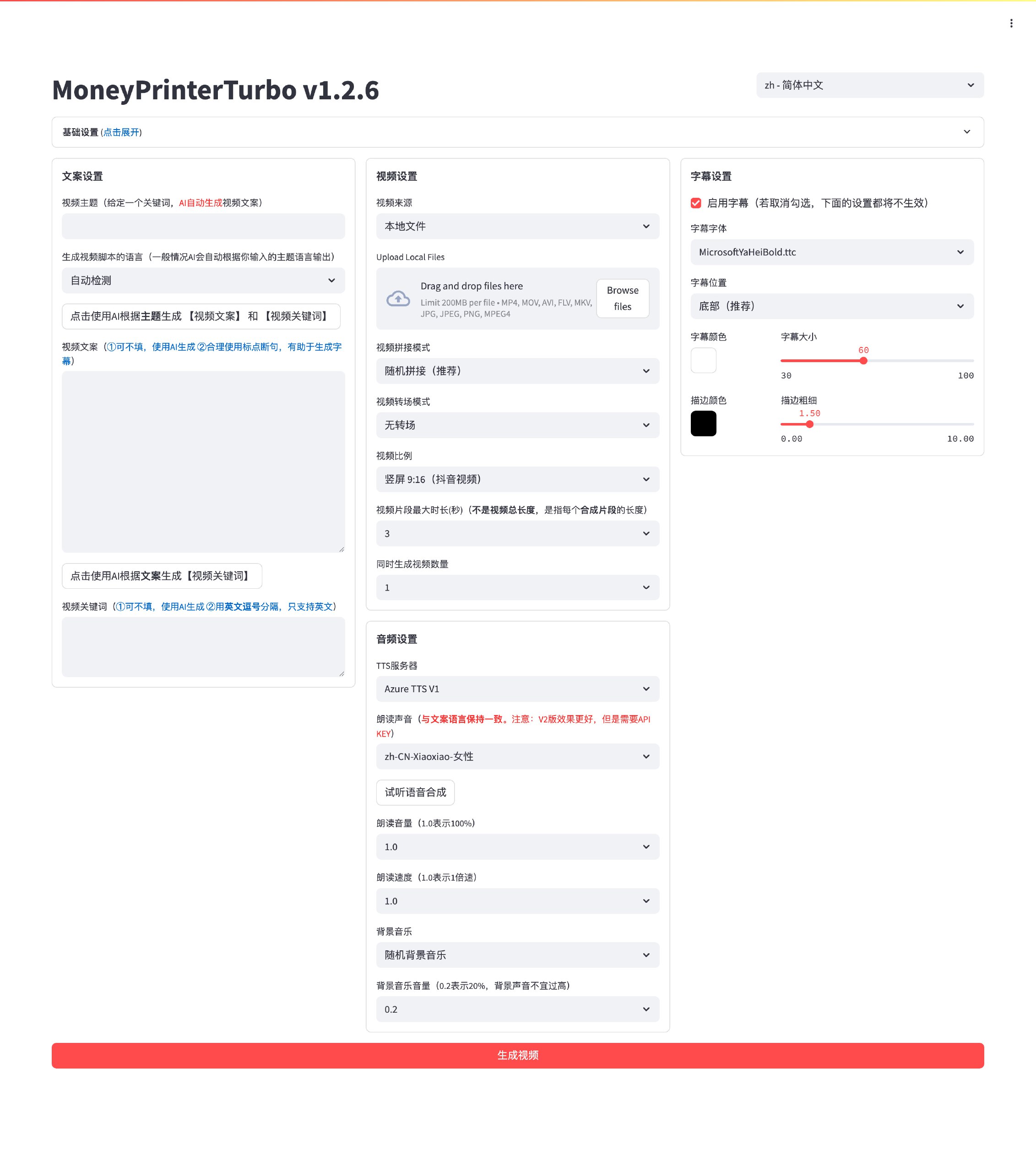
An AI-powered tool that lets you generate high-quality short videos with a single click.
Simply provide a video topic or a keyword, and it will automatically generate: script, stock clips, subtitles, background music — then render a high-definition short video.
Web UI
Video Examples 📺
If the video loads slowly, please be patient.
Landscape 16:9
▶️ "Why Exercise Matters"
Portrait 9:16
▶️ "How to Add Joy to Life"
Quick Start 🚀
Official Installation Guide
Download the one‑click startup package, extract it and use directly (make sure the path contains no Chinese characters, no special symbols, no spaces)
- Baidu Netdisk (v1.2.6): https://pan.baidu.com/s/1wg0UaIyXpO3SqIpaq790SQ?pwd=sbqx Code: sbqx
- Google Drive (v1.2.6): https://drive.google.com/file/d/1HsbzfT7XunkrCrHw5ncUjFX8XX4zAuUh/view?usp=sharing
After downloading, it's recommended to double-click update.bat first to update to the latest code, then double-click start.bat to launch.
Once started, a browser will open automatically (if it's blank, try using Chrome or Edge instead)
Manual deployment is more complex. Please return to the overview and open the MoneyPrinterTurbo GitHub repository for details.
After downloading, it's recommended to double-click update.bat first to update to the latest code, then double-click start.bat to launch.
Once started, a browser will open automatically (if it's blank, try using Chrome or Edge instead)
If your computer has a GPU, refer to How to Change the Video Encoder to enable GPU-accelerated encoding for much faster speed.
Getting Started
Basic Configuration
- Configure a Pexels API Key: Get one here
If you've already configured it, you can skip this step.
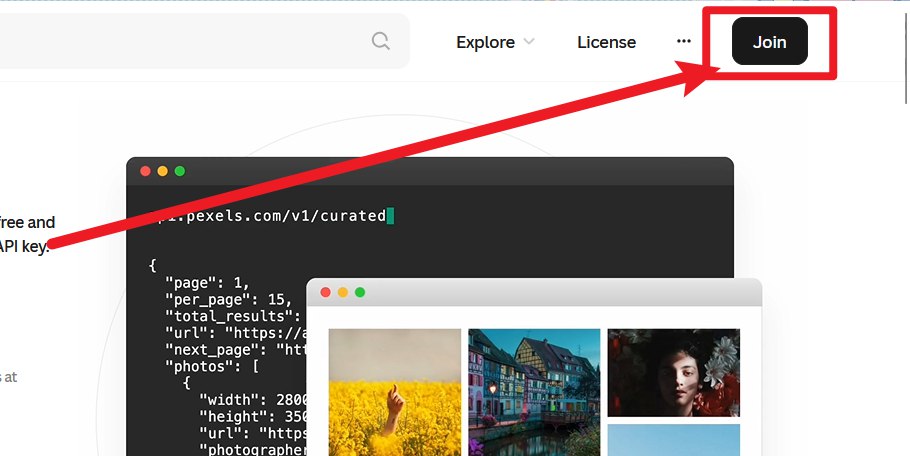
Click to expand the Pexels API Key registration guide
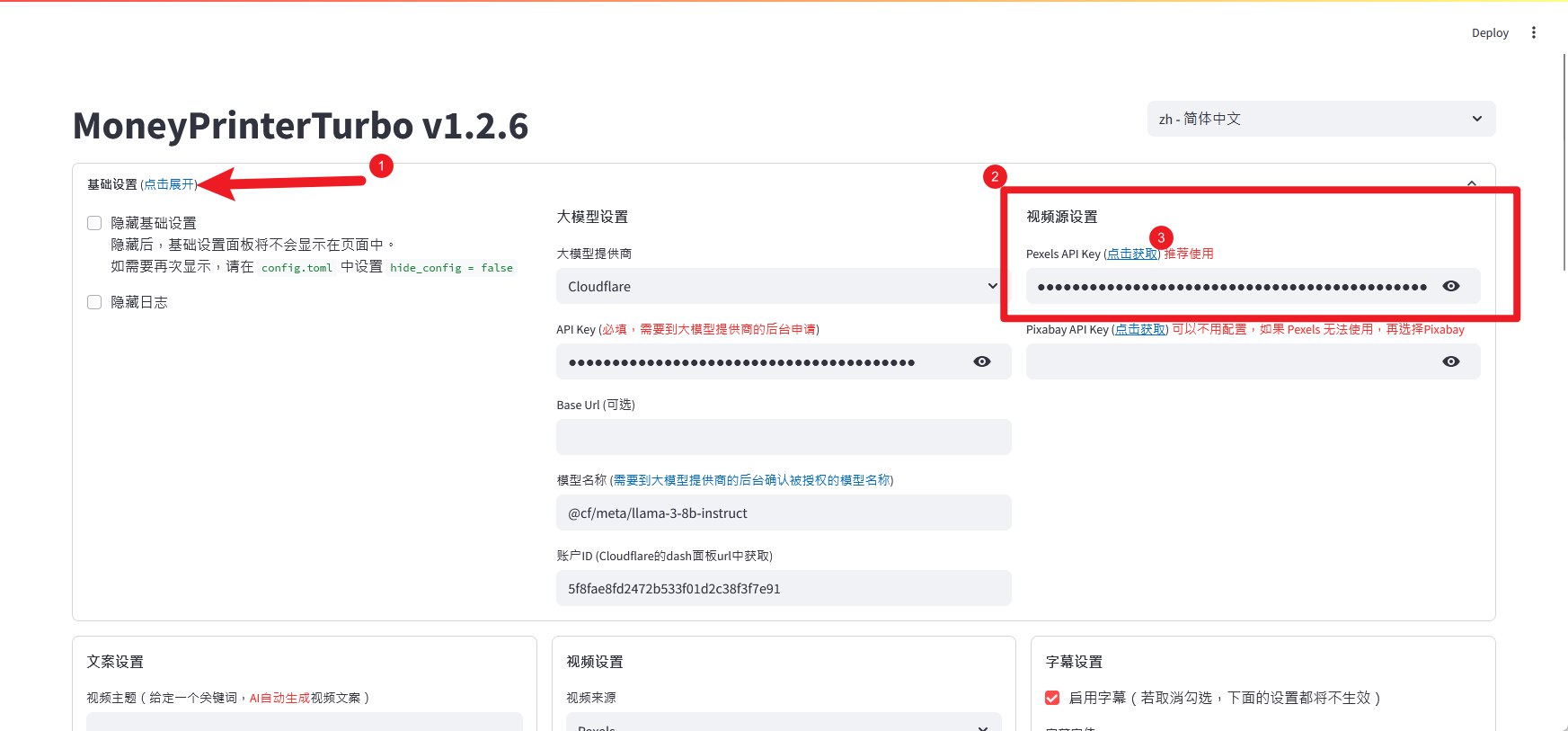
Register an account
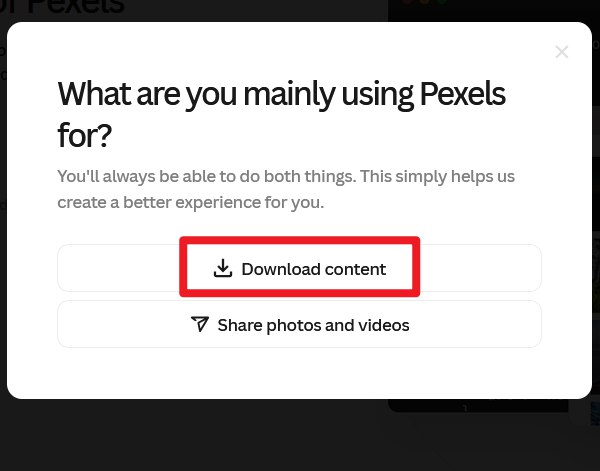
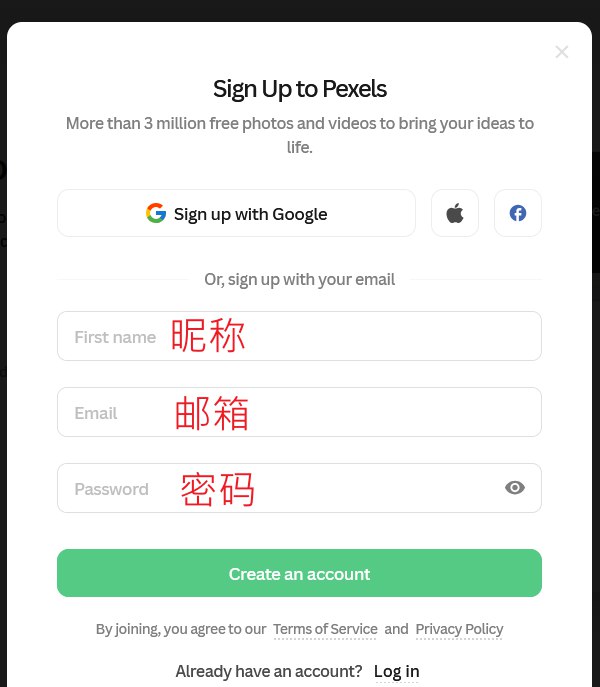
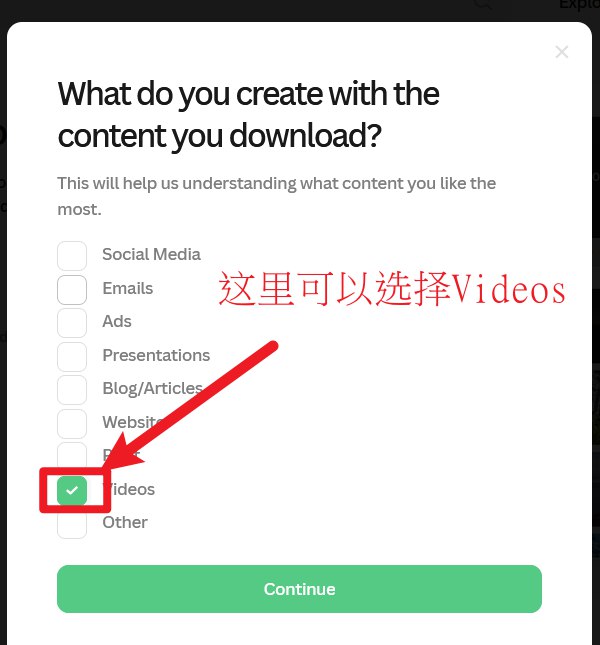
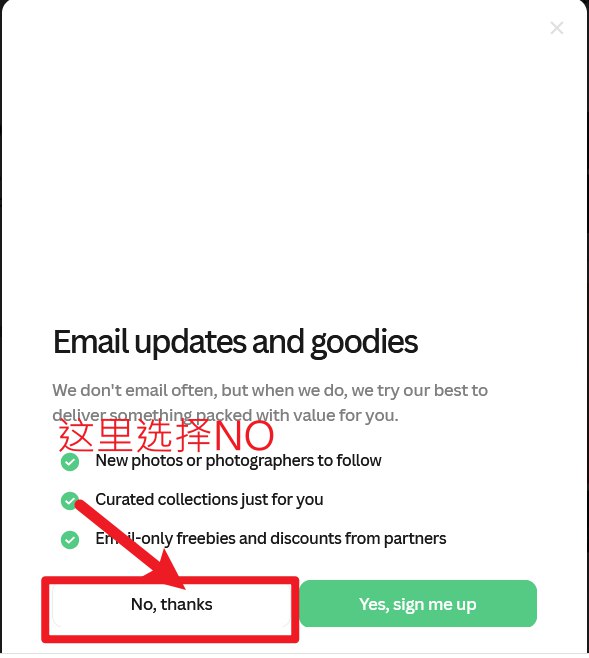
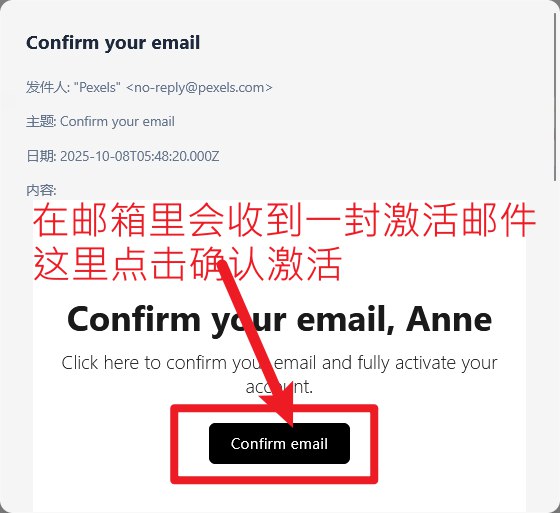
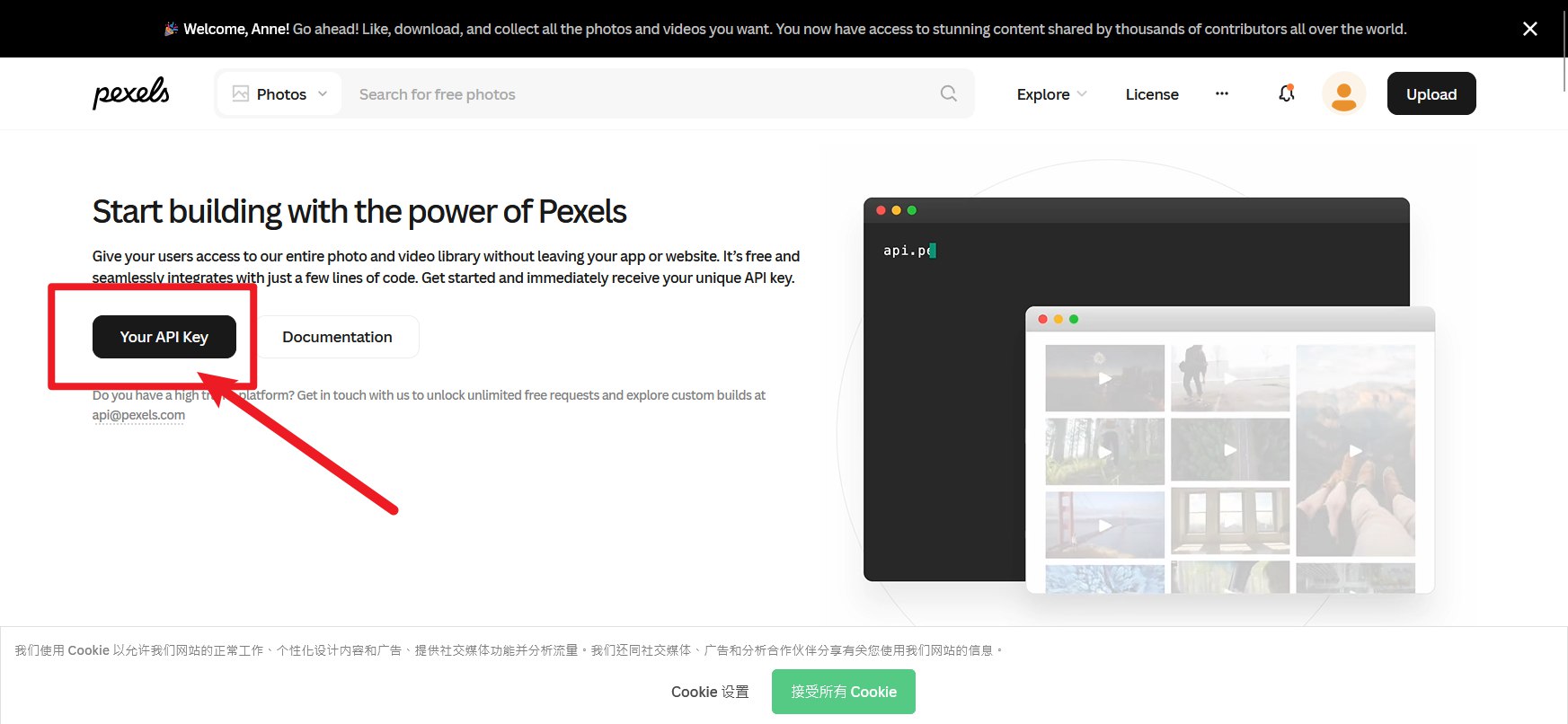
Return to the API page: Jump now
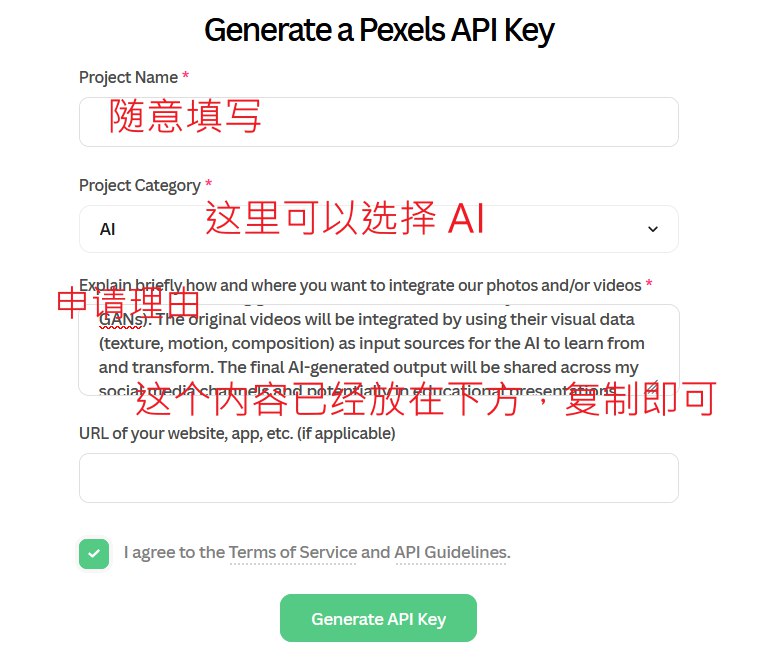
Application purpose:
I plan to use Pexels videos for AI-powered secondary creation. Specifically, I will use them as base footage to train and generate novel video content using generative AI models (such as Style Transfer or GANs). The original videos will be integrated by using their visual data (texture, motion, composition) as input sources for the AI to learn from and transform. The final AI-generated output will be shared across my social media channels and potentially in educational presentations, clearly adhering to Pexels' licensing requirements for attribution and non-commercial/appropriate commercial use.
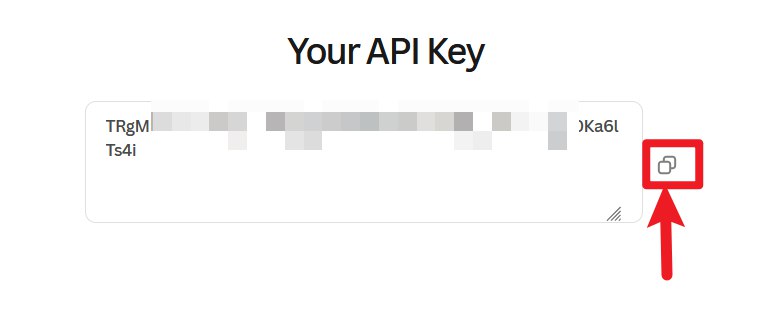
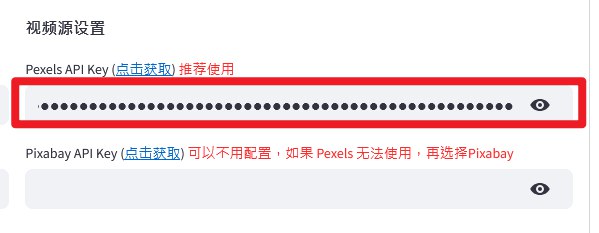
After obtaining your API Key, go back to the MoneyPrinterTurbo settings page and paste it into the Pexels API Key field.
- Configure AI API Key
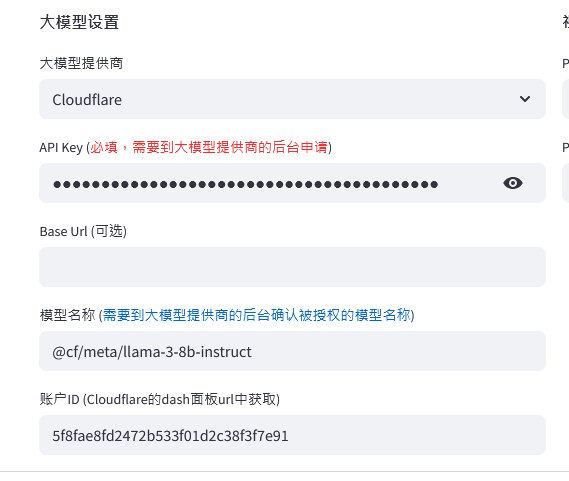
If you are not sure what a large-model API Key is, you can skip this and use the built‑in AI chat (e.g. Doubao, deepseek, etc.).
Here we leave the large-model API Key empty and directly use Doubao as an example.
Generate a Video
- Decide on a video topic
Example: How to Add Joy to Life
- Chat with Doubao to generate the [Script] and [Keywords]
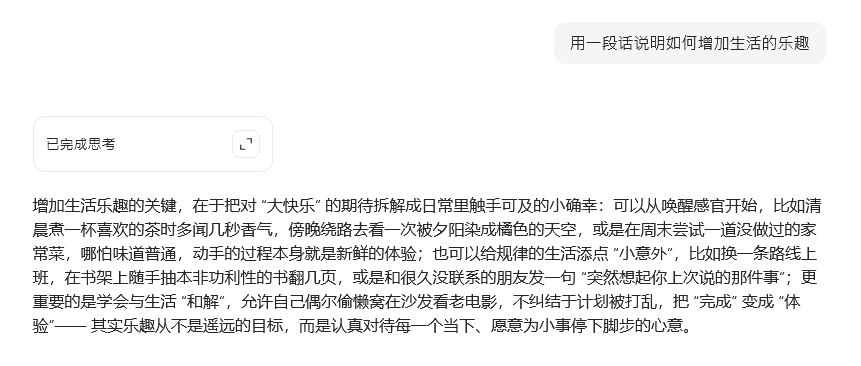
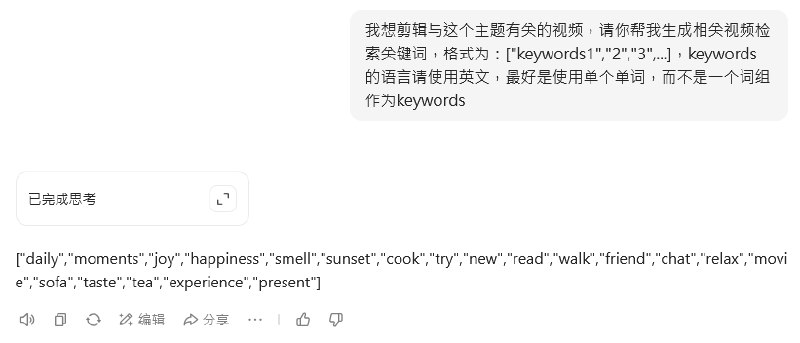
Useful prompts:
Explain in one short paragraph how to add more joy to life.
I want to edit a video about this topic. Please generate search keywords related to it in the format: keywords1,2,3,... The keywords should be in English.
- Fill in the required fields in MoneyPrinterTurbo
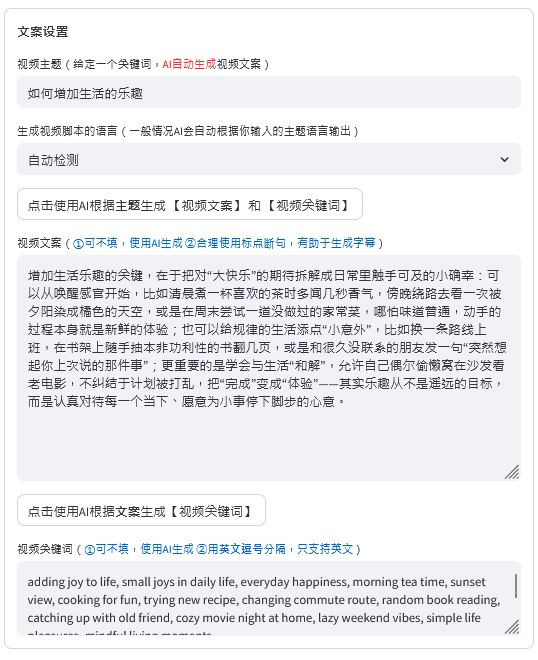
Other settings can be adjusted to your preference.
- Click Generate Video and wait for the process to complete.
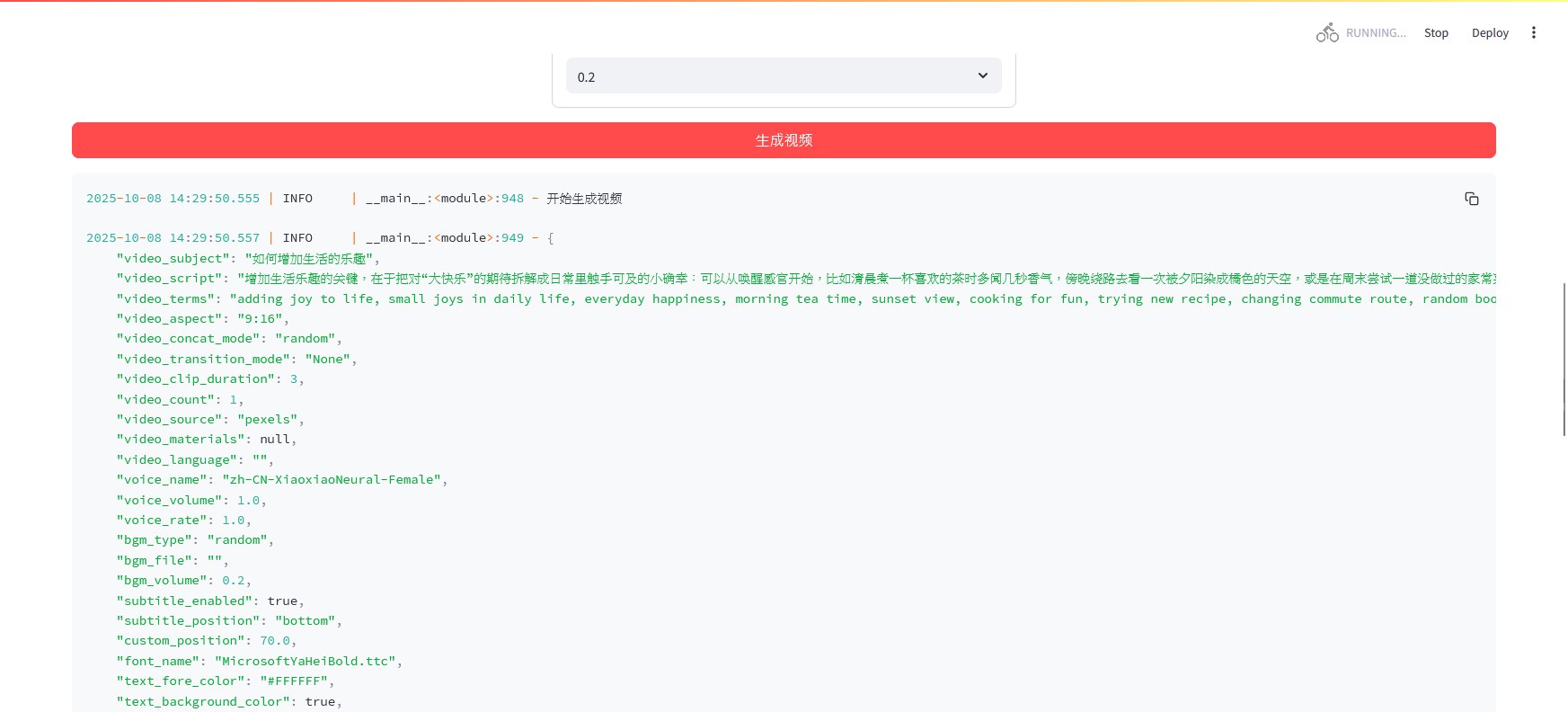
Result Preview
How to Change the Video Encoder
By default, the video is encoded using the libx264 encoder (CPU-based), which is slower. If your computer has an NVIDIA GPU, you can switch to h264_nvenc for GPU-accelerated encoding and much faster speed.
Always run the ffmpeg command to see which encoders your system actually supports before changing the encoder. Otherwise, video generation may fail.
nvencrefers to NVIDIA GPU encoders
This guide only demonstrates NVIDIA GPUs. For other brands, see the section at the end.
Check Supported Encoders
- After extracting, open the
MoneyPrinterTurbo-Portable-Windows-1.2.6folder.
The location of ffmpeg.exe is shown below:
MoneyPrinterTurbo-Portable-Windows-1.2.6
  ├─ Lib
  │   └─ ffmpeg
  │         └─ ffmpeg-7.0-essentials_build
  │                                    └─ ffmpeg.exe
- Inside the folder containing
ffmpeg.exe, holdShiftand right-click on a blank area, then choose Open PowerShell window here (or Open command window here).
Click to expand example output
Windows PowerShell
Copyright (C) Microsoft Corporation. All rights reserved.

Install the latest PowerShell for new features and improvements! https://aka.ms/PSWindows

PS C:\Users\Miku\Downloads\MoneyPrinterTurbo-Portable-Windows-1.2.6\lib\ffmpeg\ffmpeg-7.0-essentials_build>
- Paste and run the following command:
./ffmpeg.exe
This will list all encoders supported by the current ffmpeg build.
Click to expand example output
Windows PowerShell
Copyright (C) Microsoft Corporation. All rights reserved.

Install the latest PowerShell for new features and improvements! https://aka.ms/PSWindows

PS C:\Users\Miku\Downloads\MoneyPrinterTurbo-Portable-Windows-1.2.6\lib\ffmpeg\ffmpeg-7.0-essentials_build> ./ffmpeg.exe
ffmpeg version 7.0-essentials_build-www.gyan.dev Copyright (c) 2000-2024 the FFmpeg developers
  built with gcc 13.2.0 (Rev5, Built by MSYS2 project)
  configuration: --enable-gpl --enable-version3 --enable-static --disable-w32threads --disable-autodetect --enable-fontconfig --enable-iconv --enable-gnutls --enable-libxml2 --enable-gmp --enable-bzlib --enable-lzma --enable-zlib --enable-libsrt --enable-libssh --enable-libzmq --enable-avisynth --enable-sdl2 --enable-libwebp --enable-libx264 --enable-libx265 --enable-libxvid --enable-libaom --enable-libopenjpeg --enable-libvpx --enable-mediafoundation --enable-libass --enable-libfreetype --enable-libfribidi --enable-libharfbuzz --enable-libvidstab --enable-libvmaf --enable-libzimg --enable-amf --enable-cuda-llvm --enable-cuvid --enable-dxva2 --enable-d3d11va --enable-d3d12va --enable-ffnvcodec --enable-libvpl --enable-nvdec --enable-nvenc --enable-vaapi --enable-libgme --enable-libopenmpt --enable-libopencore-amrwb --enable-libmp3lame --enable-libtheora --enable-libvo-amrwbenc --enable-libgsm --enable-libopencore-amrnb --enable-libopus --enable-libspeex --enable-libvorbis --enable-librubberband
  libavutil      59.  8.100 / 59.  8.100
  libavcodec     61.  3.100 / 61.  3.100
  libavformat    61.  1.100 / 61.  1.100
  libavdevice    61.  1.100 / 61.  1.100
  libavfilter    10.  1.100 / 10.  1.100
  libswscale      8.  1.100 /  8.  1.100
  libswresample   5.  1.100 /  5.  1.100
  libpostproc    58.  1.100 / 58.  1.100
Universal media converter
usage: ffmpeg [options] [[infile options] -i infile]... {[outfile options] outfile}...

Use -h to get full help or, even better, run 'man ffmpeg'
Full window screenshot
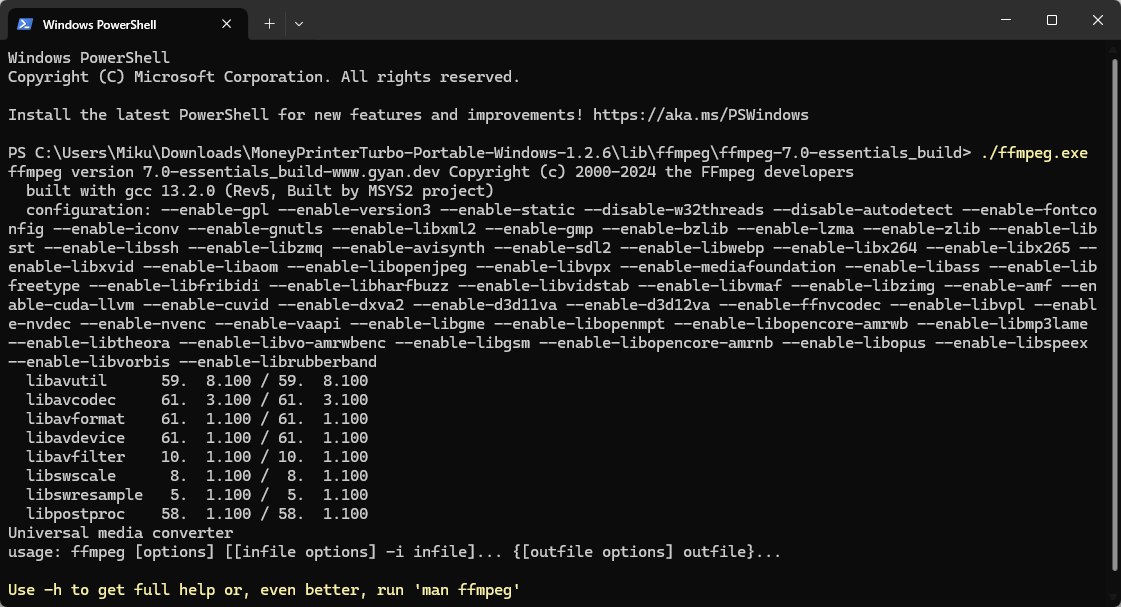
- If the output contains
--enable-nvenc, it means NVIDIA GPU accelerated encoding is supported.
Modify the Encoder
- Open the folder
MoneyPrinterTurbo-Portable-Windows-1.2.6\MoneyPrinterTurbo\app\servicesand locate thevideo.pyfile.
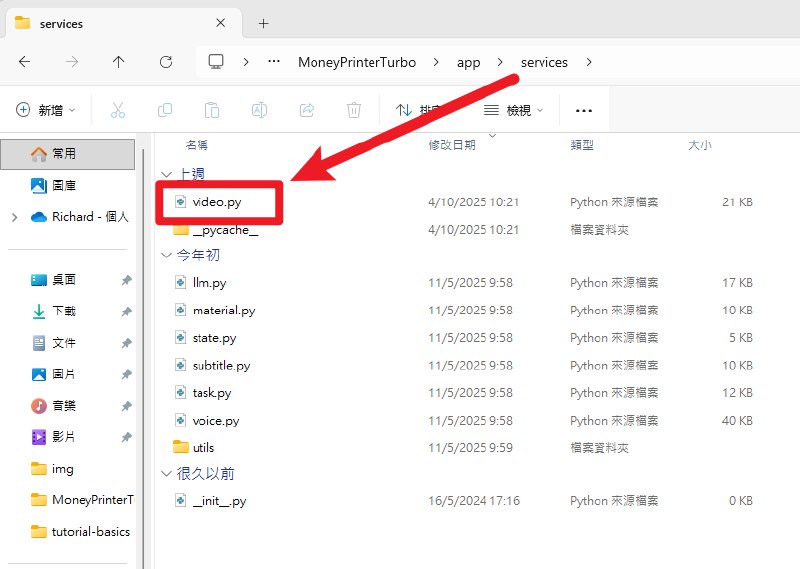
- Open
video.pywith a text editor (recommended: VSCode, Notepad++).
This demo uses Notepad.
- Right-click
video.py-> Open with -> Notepad - If Notepad is not listed: choose Choose another app -> More apps -> Look for another app on this PC, then select
C:\Windows\System32\notepad.exe.
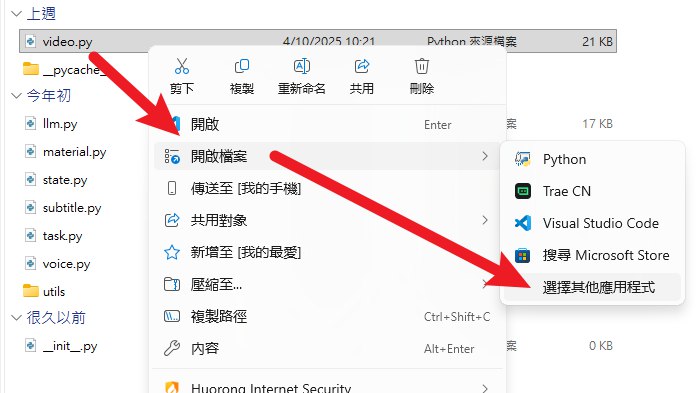
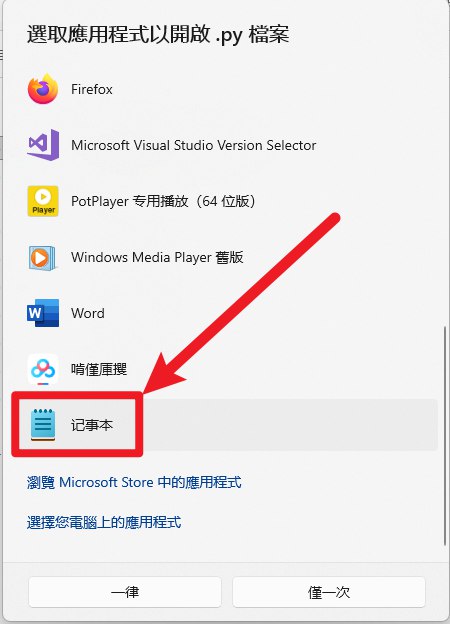
- Copy the following content and replace the contents of
video.py:
Click to expand code
# ...full code identical to the Chinese version...
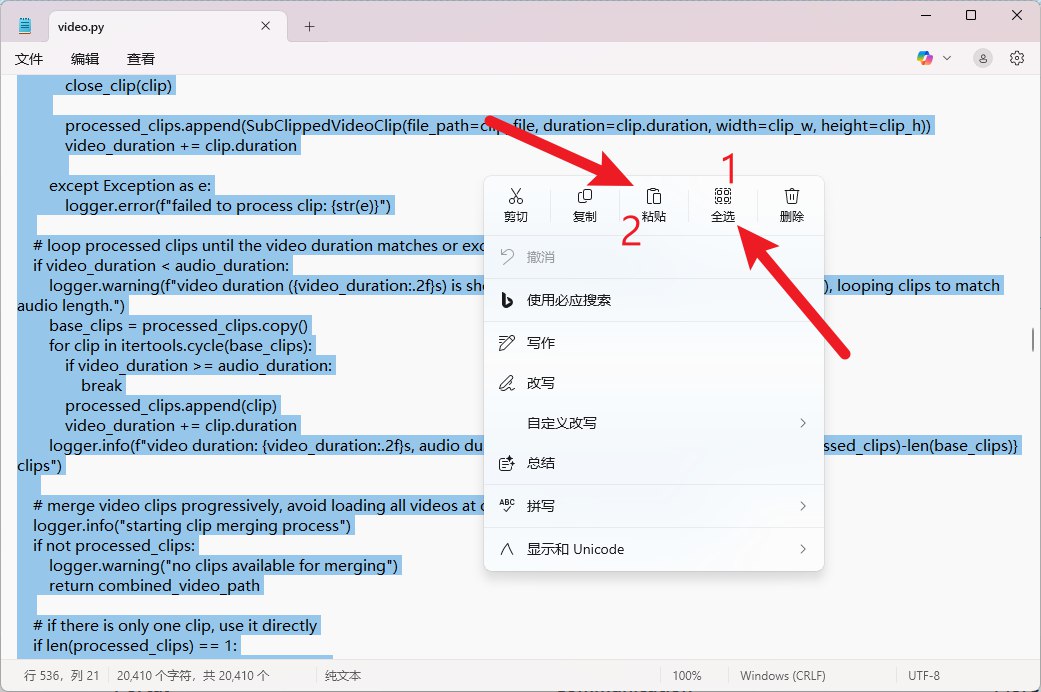
At this point the encoder has been successfully modified. You can now use your NVIDIA GPU to accelerate video generation.
Other GPU Brands
In the modified video.py, locate the following line:
video_codec = "h264_nvenc"
Replace h264_nvenc with the encoder name for your GPU brand. Refer back to Check Supported Encoders.